GitHub Account Creation
You will need to log in to GitHub for your course using a GitHub account associated with your UW NetID. You can use either:
- an existing account, adding your @uw.edu email under Settings>Email
- a new account using your @uw.edu email
NOTE: if you do create a second GitHub account, you need to make sure you have logged in to the account associated with your @uw email before accessing course or else you may get a 404 error.
We recommend your GitHub account have at least two emails associated with it either way.
Sign up for GitHub
- Go to GitHub and click the Sign up link in the upper right corner.

- Complete the form. As you enter your information, GitHub will check that it is valid. Green check marks appear by each of the first 3 fields as they are verified.
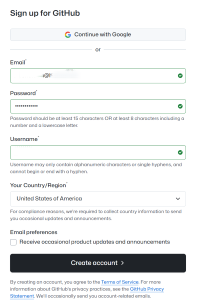
- The main email for your account. We recommend using your @uw email for your GitHub account for this course/program. You can (and should) add at least one additional email to your GitHub account under Settings>Email to maintain access after you finish setting up your account.
- A password for your GitHub account. Make sure your password is at least 15 characters OR at least 8 characters including a number and a lowercase letter.
- A username for your GitHub account.
- Your Country/Region
- Leave the Email preferences checkbox unchecked unless you want to receive these communications.
- After you click the Create account button, you will be asked to verify your email by entereing a code sent to the email address you provided.
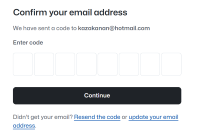
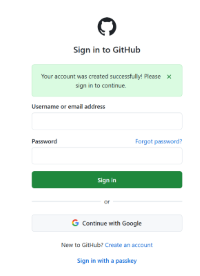
- Once you enter the code to verify your account, you can now sign in.