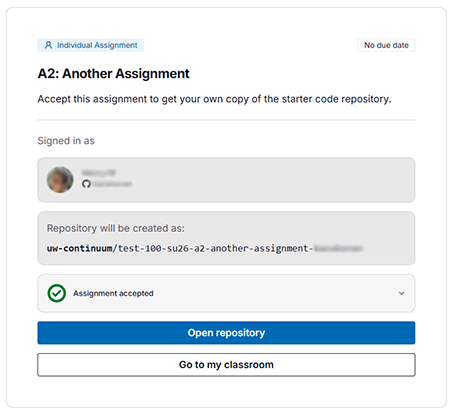
Learn how to set up a GitHub account, link to your @uw.edu email address to your GitHub account, accept your course/program's GitHub Organization invitation, and accept assignments from Classroom 50.
GitHub Account
You need a GitHub account associated with your UW NetID to accept Classroom 50 GitHub assignments. You can either use an existing GitHub account or you can create a new account. Either way, you need to make sure that your @uw.edu email is associated with your account under Settings>Email. We recommend that you have at least 2 e-mail addresses associated with your account.
NOTE: GitHub may require you to enable two-factor authentication (2FA). If you enable 2FA, please make sure to save your recovery codes to ensure you do not permanently lose access to your account! We recommend using a time-based one-time password (TOTP) application like Duo or Google Authenticator.
Existing Account
If you have a GitHub account that is not associated with your @uw email address, you must do so under Settings>Emails before you log in or you won't be authenticated as needed to generate your assignment repository in your program's UW GitHub Org.
Create an Account
- Go to GitHub and click the Sign up link in the upper right corner.

- Complete the form. As you enter your information, GitHub will check that it is valid. Green check marks appear by each of the first 3 fields as they are verified.
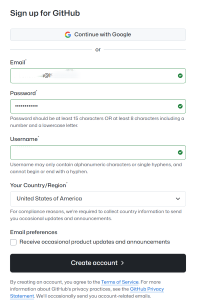
- The main email for your account. We recommend using your @uw email for your GitHub account for this course/program. You can (and should) add additional emails to your GitHub account under Settings>Email at any time.
- A password for your GitHub account. Make sure your password is at least 15 characters OR at least 8 characters including a number and a lowercase letter.
- A username for your GitHub account. Keep in mind that all your assignment repositories will include this username (e.g., assignment1-mygithubname)
- Your Country/Region
- Leave the Email preferences checkbox unchecked unless you want to receive these communications.
- After you click the Create account button, you will be asked to verify your email by entereing a code sent to the address you provided.
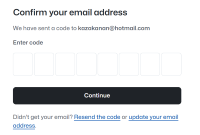
- Once you enter the code to verify your account, you should sign in.
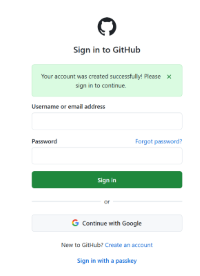
NOTE: if you chose to create a second GitHub account, make sure you are logged in to the account associated with your @uw email before accepting assignments or you will get an error when you try to accept the assignment.
GitHub Organization Invitation
Before you can accept your first Classroom 50 GitHub assignment, you need to accept the emailed invitation to become a Member of your Program's GitHub Organization. Your instructor will let you know when to expect your invitation, which will be sent to your @uw.edu email address. The invitation expires after 7 days so make sure you accept it promptly!
You should confirm that your @uw.edu email address is being sent to by going to your UW Email Forwarding page. Email forwarding from @uw.edu to another email account may not forward external emails like this invitation.
Added to the Course Team Email
You will also get an email from GitHub once you have been added to the Course Team. The subject line will include your Course/Certificate Organization's name and the name of the team, for example "classroom50-python-320-su26".
Accepting Assignments
NOTE: You must be authenticated with both your UW NetID and your GitHub username, as well as authorize your GitHub account to use your UWC2 Org, in order to accept assignments.
For GitHub Classroom assignments, your Canvas course will have an "accept assignment" link. After you click the link to accept assignment, complete the following if prompted to properly authenticate and authorize:
- Log into GitHub by clicking the Sign in with GitHub button and filling out GitHub Sign in form
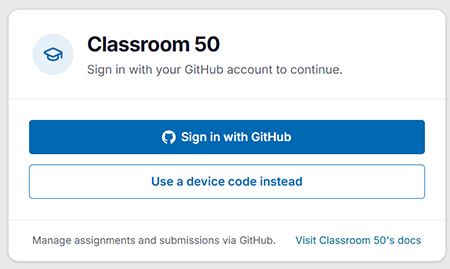
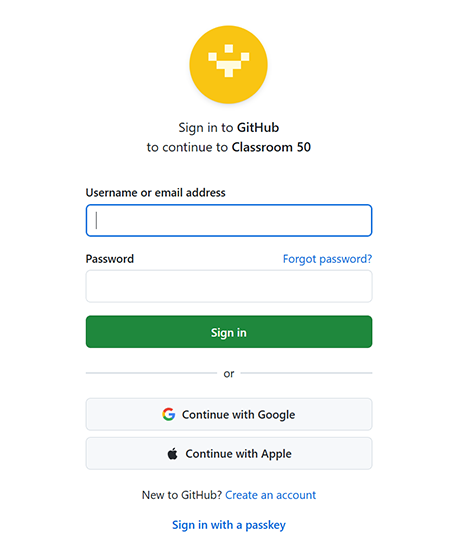
- Verify using Two-factor authentication by entering code from your 2FA app or browser extension and clicking the Verify button
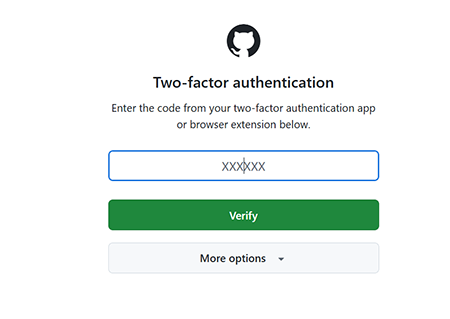
- Authorize the GitHub Organization for your Class/Certificate program by clicking on the green Authorize button next to its name. This is an SSO single-use authorization (not a one and done enduring authorization) so you will need to re-Authorize whenever prompted.
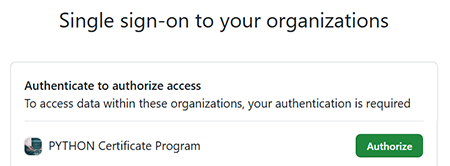
NOTE: You can confirm your GitHub account is Signed in by checking Single sign-on under Settings and looking for your UWC2 Org.
-
Authorize Classroom 50 on your GitHub account by clicking the Authorize foundation50 button.
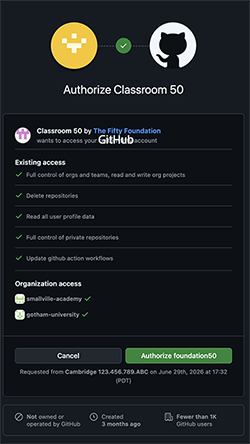
NOTE: You will get an email from GitHub with the name of our Course/Certificate Organization and "has approved a third-party application that you use" as the subject line.
NOTE: You can confirm that you have authorized Classroom 50 by going to Authorized OAuth Apps under Settings in GitHub.
- Click the Accept Assignment button on the Classroom 50 page to generate your assignment repository. Its name will be the assignment name + your GitHub username.
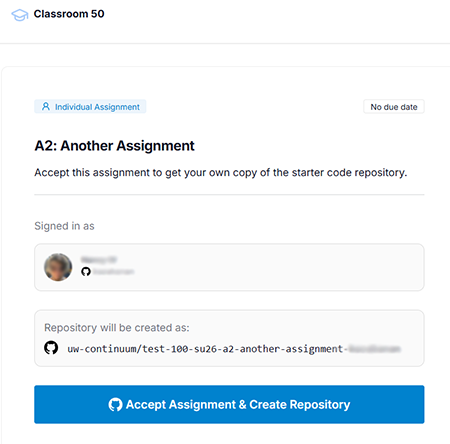
NOTE: if you are redirected to the main University of Washington Enterprise page, try pasting the assignment link into your browser.
- Once Classroom 50 has set up your assignment repository, click the Open Repository button to go to your repository on GitHub.